Excel to Container Load Plan: AI Cargo Import Guide
Import an Excel cargo workbook with AI, review units and failed rows, then add products and quantities to a container loading plan. Includes a two-sheet example.
From an Excel cargo list to a container loading plan
LoadVis can use AI to read product specifications from an Excel workbook instead of asking you to copy every dimension and weight into a form. This guide follows the product-library import workflow: import specifications, review the saved products, add them to a loading plan, and confirm shipment quantities before calculating. An imported product record is not a finished packing plan.
Excel file import is available in the signed-in workspace. The free container loading calculator accepts manual entries and pasted shipment text, not workbook uploads. If you only need a quick estimate for up to two products, you can use that public calculator without an account.
1. Prepare a small, readable workbook
Use an .xlsx or .xls file of at most 10 MB. Keep one product per row and label the product name, outside length, width, height and gross weight per unit. Give each dimension and weight an explicit unit. Remove unrelated customer details, prices and personal information: the importer reads non-empty sheets, not just the active worksheet, and sends extracted cell content to the external AI service.
Download the example product workbook. Its three fictional carton specifications are split across two worksheets to demonstrate multi-sheet input and unit review. It has no customer shipment data and no shipment quantity column, because the product library stores reusable specifications. Set quantities when adding these products to your plan.
| Worksheet | Product | Outside dimensions | Unit gross weight |
|---|---|---|---|
| Products cm kg | Sample Carton A | 60 × 40 × 40 cm | 15 kg |
| Products cm kg | Sample Carton B | 80 × 50 × 30 cm | 20 kg |
| Products mm t | Sample Carton C | 600 × 400 × 400 mm | 0.015 t |
The expected normalized dimensions for Carton C are 60 × 40 × 40 cm, with a gross weight of 15 kg. These are transparent arithmetic expectations, not a recorded AI recognition result or an accuracy claim. Review what your own import actually saves.
2. Open Product Management and choose AI Import
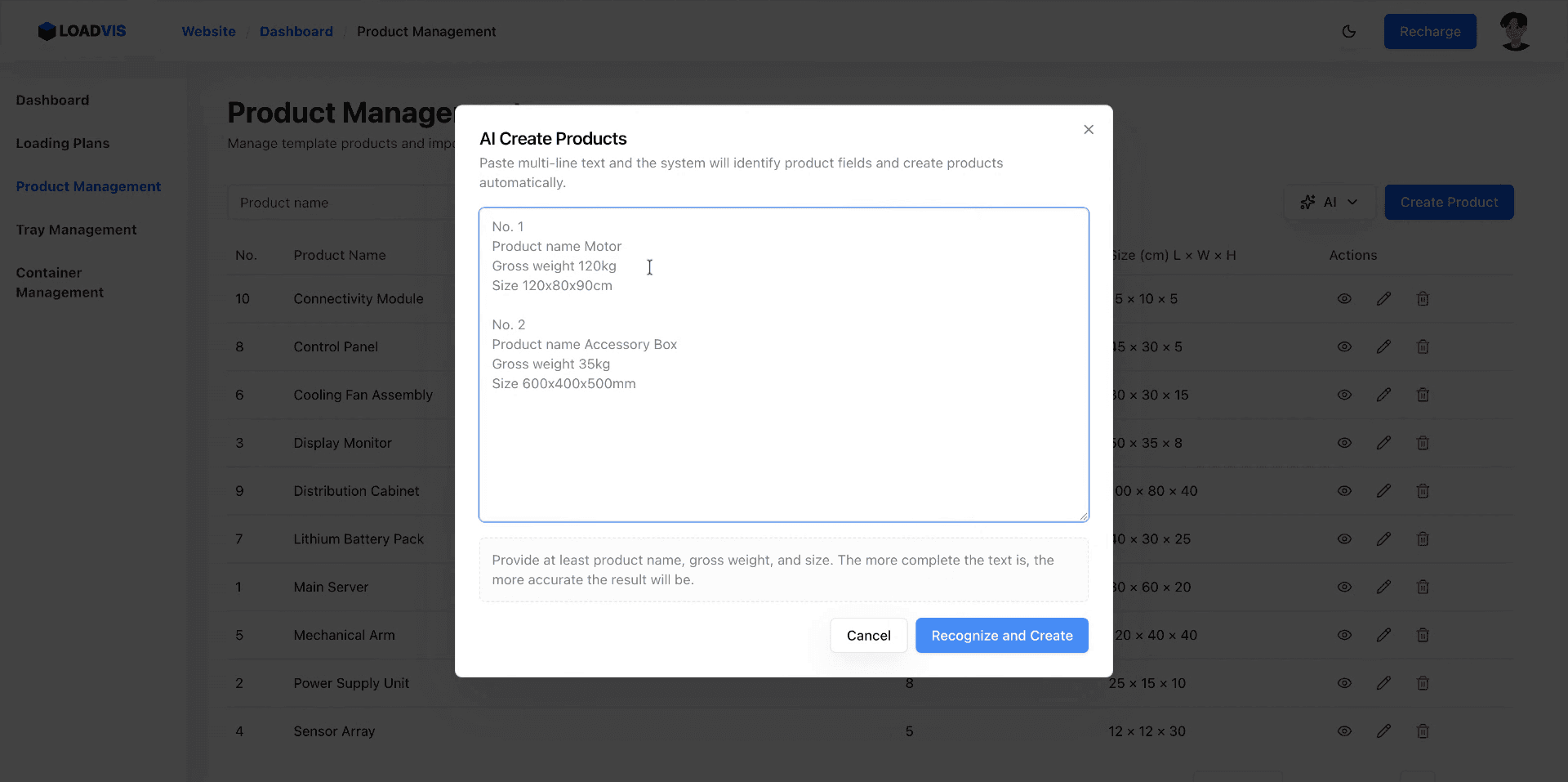
Sign in and open Product Management. Open the AI action menu, choose AI Import, select your workbook and submit it. AI Create is the alternative for pasting specification text; it is a separate input method, not the workbook upload control.
The importer reads non-empty worksheet rows, asks the model to identify product records and validates the returned fields. Rows that pass validation are saved. There is no separate approval screen before every valid row is saved, so start with the small example and review the resulting product list before importing a larger file.
3. Review units and product fields after import
The workspace product recognizer is instructed to convert mm and m to cm, and tonnes to kg. It also recognizes already stated cm and kg. This is assisted unit normalization, not a guarantee of correct interpretation. Check the source units and compare the stored values to your packaging specification. Do not assume that every AI input module supports the same units.
Verify the gross weight of one complete package, not a shipment total or a net product weight. Measure the finished outer package, including protection and protrusions. Review orientation, pallet needs, packaging category, load-bearing settings and stacking limits in the product editor. Missing handling requirements are not established by recognizing the dimensions.
For the example, verify all three product names and the values in the table. If Carton C remains 600 cm long or 0.015 kg, correct it before use. A syntactically valid number can still be the wrong business value.
4. Read failure details and retry only the affected rows
The result can include saved records and failed candidates. Failure details identify the worksheet and, when the model provides it, the row number. Use the error message to supply a missing product name, correct invalid dimensions or clarify a weight. If the entire workbook is unreadable or the AI service is unavailable, fix the file or try again later.
Do not repeatedly submit the original full file after a partial success: valid rows have already been saved and a second import can create duplicates. Review the list, prepare a workbook containing only the rows that failed, and retry those rows. If you edit the sample to test a missing weight, use an account where you can manage the resulting sample records.
5. Add the reviewed products to a loading plan
Open a loading plan, add the reviewed product specifications and enter the quantity for this shipment. Select the actual container and confirm its internal dimensions and payload. Configure the handling and loading constraints appropriate to the shipment before submitting a full planner calculation.
Full planner calculations require an account and calculation points; check pricing for your use. Inspect the calculated placements, loaded and remaining quantities, and loading guidance. Do not treat a high utilization percentage as a substitute for reviewing packaging strength, support, door clearance and warehouse handling.
Text recognition is another way to start
If your source is an email or a short specification block, paste it into AI Create in the product workspace or use free shipment recognition. For example: “40HC container; Carton A, 60 × 40 × 40 cm, 15 kg gross per carton, 100 cartons, upright, horizontal rotation allowed.” This is illustrative input; check the actual recognition output before relying on the calculation.
The free calculator supports up to two products, one container and 2,000 cartons total. AI text is limited to 6,000 characters and three attempts per IP per UTC day, with at least 60 seconds between attempts and a shared daily cap. Failed recognition also counts. Manual entry and examples do not use AI quota.
What AI import does, and what you still need to check
AI assists with reading the list and structuring fields. The loading engine calculates placements from the reviewed data. The free engine is a quick upright-carton estimate and does not validate door clearance, load securing, crush strength, weight distribution or loading sequence. Confirm the real equipment and handling requirements independently.
See AI-assisted container loading for the input options and limits, or read how submitted AI data is processed. No PDF, scanned-image OCR, external ChatGPT connector or public loading API is provided by this Excel import workflow.